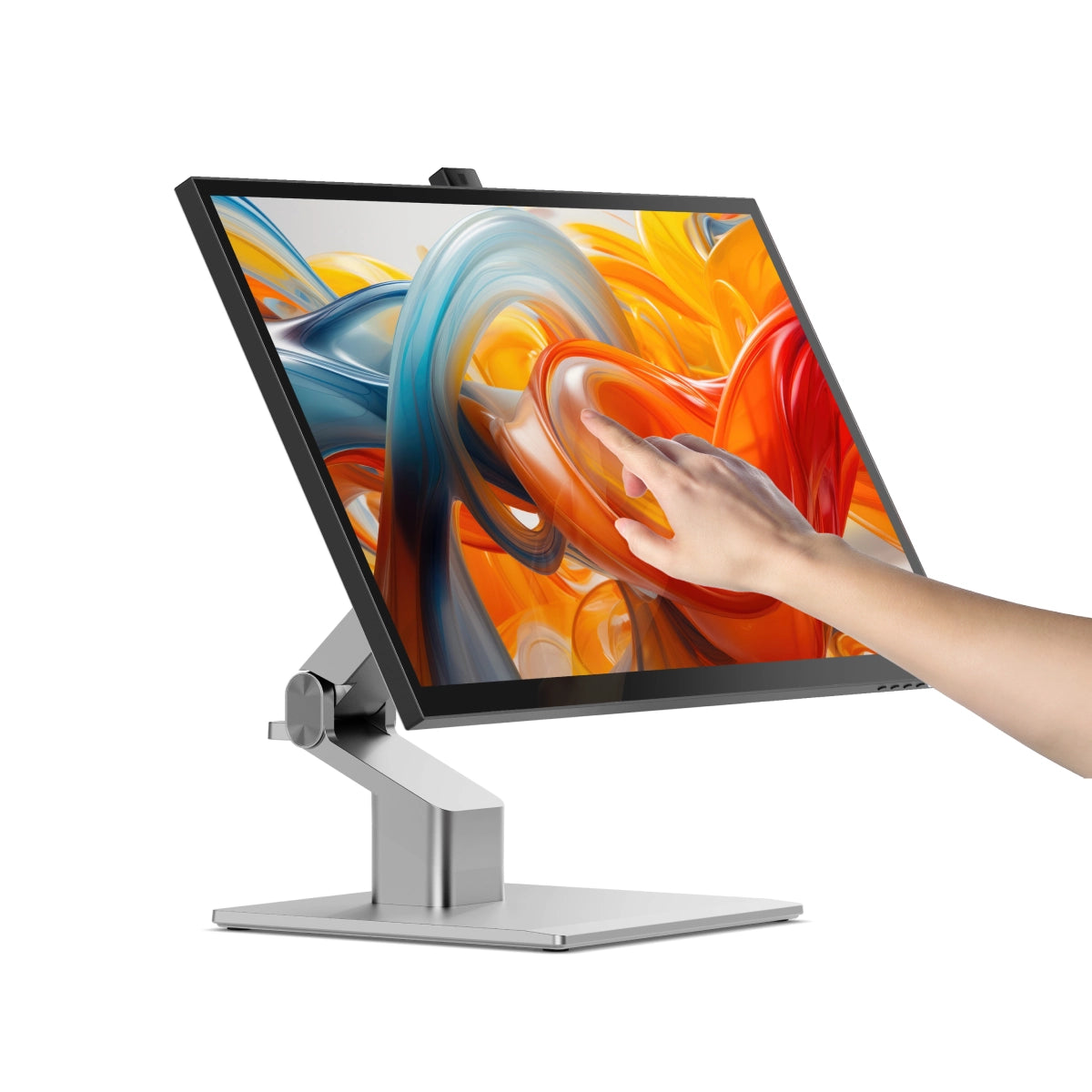
Touch
(Windows 10/11) My touch input is controlling the wrong screen!
Sometimes, Clarity Touch’s input will be applied by your computer to another display instead of Pro Touch. If you’re using Windows 10 or 11 with multiple displays you can specify which monitor you want touch input to apply to, which saves you having to mouse over to that display before using touch. To do this, launch Control Panel, click “Hardware and Sound” then ‘Calibrate the screen for pen or touch input’ from the menu. Select “Setup”, choosing “Pen Input” if you’re using an active stylus or “Touch Input” if you’re using your fingers or a capacitive stylus, then follow the onscreen instructions. If completing this process doesn’t resolve your issue, try setting up for the other kind of input. If neither of these work for you, please reach out to our support team (support@alogic.co) and we’ll give you a hand.
(macOS) My touch input is controlling the wrong screen!
When using a touchscreen monitor on an Apple computer, without installing Clarity Touch's macOS drivers, your input is applied to the monitor your cursor was on when you started touching. To ensure your touch input is registered on the correct screen, you can: Install the Clarity Touch's macOS drivers and use the "Identify" tool of UPDD Daemon to designate the correct screen for touch input.
General
How do I recharge my laptop with Clarity?
To charge your laptop via Clarity (up to 90W Clarity, 65W Clarity Pro or Pro Touch), simply connect it to the monitor via a USB-C cable which supports the required wattage.
However, it does need to plug into a USB-C port compatible with PD (Power Delivery) on your computer.
These can sometimes be identified by the presence of a battery icon next to the port on your laptop, but often you’ll need to check the user manual or manufacturer’s website to figure out which USB-C ports support PD.
All Thunderbolt 3 and 4 ports support PD.
How do I use Clarity's USB-A ports?
In order for your computer to access devices you've plugged into Clarity's two rear USB-A ports, you need to ensure your computer is:
1. Connected to Clarity via either:
Clarity's USB-C port
Clarity's USB-B port
2. Clarity "Active USB" mode is set to the same USB port you've connected to your computer.
To change Clarity's "Active USB" mode, navigate to "USB Switch" in the "Other Settings" menu of Clarity's main menu.
For example: if your computer is connected to Clarity via USB-C, you would select "Type-C" in the "USB Switch" menu.
Does Clarity support VESA mounting?
Yes, Clarity is compatible with 100x100mm VESA mounts, and includes four mounting screws.
What size mounting screws should I use with Clarity monitors?
The following assembly instructions can also be found in your product manual, which is available to download from the top of this page.
1. Remove the Clarity Fold Stand from its packaging and insert the stand stem into the base. Secure these with the thumbscrew underneath the fold stand’s base.
2. Place your Clarity Touch monitor face down on a secure, flat surface like a table.
3. Insert the stand’s monitor plate into the VESA mount on the back of your Clarity Monitor, then secure it in place with the four mounting screws provided.
Can I use Clarity Touch for pressure-sensitive drawing in Photoshop/Illustrator/Clip Studio?
Yes, when combined with the
Clarity Active Stylus (ALASS2) all Clarity Touch monitors support up to 4096 levels of pressure sensitive pen input on Windows and Mac (with our Clarity Touch Drivers for macOS installed), fully compatible with drawing apps such as Adobe’s Photoshop and Illustrator, AutoDesk Sketchbook, Clip Studio Paint and even Microsoft’s OneNote.
If you encounter an app where the pressure-sensitive input doesn’t seem to be working, please reach out and let us know at support@alogic.co and we’ll help figure out what’s going wrong.
Touchscreen
Which kinds of stylus can I use with Clarity Pro Touch?
Clarity Pro Touch is a capacitive touch screen and can be used with all capacitive styluses, which are widely available from electronics retailers.
On Windows, and Mac with our Touch Screen Drivers installed, Clarity also supports most active styluses using the Microsoft Pen Protocol (MPP) 2.0 or later. This includes the ALOGIC Active Surface Stylus (ALASS).
However, Clarity Pro Touch may not take advantage of all the functions of a stylus, such as pressure sensitivity and shortcut buttons.
Can I adjust Clarity’s settings with the touchscreen?
Yes.
To open Clarity’s On-Screen Display (OSD) menu using touch controls, swipe left with two fingers in screen’s bottom right corner. With the menu open, just use your fingers to adjust Clarity’s settings.
Troubleshooting
I've connected to Clarity via USB-C. Why aren't I getting any video?
In order to connect to Clarity via USB-C, it must be plugged into a USB-C port compatible with "DP Alt Mode" - or a Thunderbolt 3/4 port.
DP Alt Mode compatible USB-C ports are sometimes marked with a "DP" symbol, but they are often identical to regular USB-C ports. If none of your USB-C ports have symbols next to them, you'll need to consult the product manual or the manufacturer's website to find out which ports are DP Alt Mode compatible.
If your computer does not support USB-C DP Alt Mode or Thunderbolt 3/4, we recommend connecting via HDMI or DisplayPort. If your laptop does not support these, you can connect using an ALOGIC Universal Dock, which leverage DisplayLink technology to deliver video over non-DP Alt Mode USB-C connections.
When I wake my computer from sleep mode, Clarity doesn’t come back on.
In some cases, it’s possible for Clarity not to recognize the wake-up signal from a connected computer. This issue occurs most often when Clarity is connected to a computer through a dock.
To resolve the issue, restart Clarity by pressing the power button twice – it should recognize the connected device as part of its boot-up sequence.
If this issue persists, we recommend trying the following steps to isolate the issue:
Connect Clarity directly to your computer
Try connecting with a different cable or port.
ie. Use DisplayPort instead of USB-C
Update your computer’s operating system.
If your problem reoccurs and these these steps do not help resolve it, please contact ALOGIC support (support@alogic.co).
Why can't I select/enable HDR?
If you cannot select HDR (it's not appearing in the "Picture Settings" menu), this is likely due to one of two reasons: 1. You're connecting to Clarity with USB-C. HDR is only available when connected via HDMI or DisplayPort. 2. You're using the monitor in SRGB, Uniformity or Adobe RGB mode. Both video presets are designed to provide perfect colour reproduction over a limited colour gamut. HDR produces colours outside these limited gamuts and thus can't be used at the same time. You can re-enable HDR by switching back to "Standard" mode in the Professional Settings menu.
Clarity isn't switching between landscape and portrait when I rotate the screen!
If Clarity is not automatically switching between portrait and landscape mode when you physically rotate the screen, it is likely because the screen's "Gravity Sensor" has been disabled.
Reenable this in "Other Settings" menu to use this feature.
Why isn't my laptop charging?
If your laptop is connected to your Clarity monitor via USB-C and it's not recieving power, the following steps may resolve your issue:
In Clarity's menu, switch the active USB port from "USB-B" to "USB-C".
Ensure the USB-C cable you're using supports 100W power transfer.
Ensure you've connected to a USB-C port on your laptop that supports "USB-C PD" or Power Delivery.
To identify USB-C PD compatible ports, look for a Thunderbolt, battery or charging symbol next to a USB-C port. If there are no markings, consult the product manual or manufacturer's website to find out whether any of your laptop's ports support USB-C Power Delivery.
Why aren't Clarity's speakers working?
In order to use Clarity's speakers, you must select "27F34KCPD" as your active sound output device in your computer's settings.
Additionally, Clarity's speakers will not function if you have an audio device connected to Clarity's rear 3.5mm audio port.
Webcam
What resolution is Clarity’s webcam?
Clarity Max Pro/Touch’s webcam has an 8MP sensor, or 8 million pixels. This is roughly equivalent to a 4K image.
Does Clarity’s webcam have a microphone?
Yes, Clarity’s webcam includes an array of four microphones to capture sound.
What programs does Clarity’s smart webcam support?
Clarity’s smart webcam slides up and down whenever your computer’s operating system (macOS, Windows, Chrome) attempts to access a webcam feed, not specific integrations with each application. As a result, the webcam will work with any program attempting to access a webcam, not just a few popular ones.
How do I adjust the webcam’s framing?
To adjust the framing of your webcam, you first need to slide the webcam up.
Open a program which requires the webcam – on Windows 11 we recommend the “Camera” app or “Photo Booth” on macOS.
Open this application and switch the active camera to Clarity Pro’s – this can be done via the “Camera” menu in Photo Booth or hitting the “Switch Camera” button in Camera – see below.
Once you’ve activated Clarity Pro’s webcam, it will slide up out of the monitor. You can now adjust its vertical framing using the scroll wheel on the rear of the camera.
My computer can't see Clarity’s webcam!
For Clarity’s webcam to function, your computer needs to be connected to either the monitor's USB-C or USB-B port. Then you need to ensure that's the active USB port is set to the same - either USB-C or USB-B. This can be set via the "USB-Switch" setting of the monitor's "USB Options" menu. If these two are correct and you can't see your Clarity’s webcam listed in your system's available webcams (listed as either 27C4KPDWT), restart the monitor and your computer. If the webcam still doesn't appear, please contact ALOGIC support: support@alogic.co and we'll help you resolve your issue.
Clarity’s webcam isn't sliding back down!
1. First, do not try to push Clarity's webcam back into the chassis. This can permanently damage the motors.
2. Then ensure that any program accessing your webcam has been closed. This can include messaging, livestreaming, audio recording and video capture applications.
3. Ensure Clarity’s active USB is set to the USB cable connecting your computer and Clarity, USB-C or USB-B. You can find this option in Clarity's menu by navigating to USB-Options --> USB Switch.
Touch
(Windows 10/11) My touch input is controlling the wrong screen!
Sometimes, Clarity Touch’s input will be applied by your computer to another display instead of Pro Touch. If you’re using Windows 10 or 11 with multiple displays you can specify which monitor you want touch input to apply to, which saves you having to mouse over to that display before using touch. To do this, launch Control Panel, click “Hardware and Sound” then ‘Calibrate the screen for pen or touch input’ from the menu. Select “Setup”, choosing “Pen Input” if you’re using an active stylus or “Touch Input” if you’re using your fingers or a capacitive stylus, then follow the onscreen instructions. If completing this process doesn’t resolve your issue, try setting up for the other kind of input. If neither of these work for you, please reach out to our support team (support@alogic.co) and we’ll give you a hand.
(macOS) My touch input is controlling the wrong screen!
When using a touchscreen monitor on an Apple computer, without installing Clarity Touch's macOS drivers, your input is applied to the monitor your cursor was on when you started touching. To ensure your touch input is registered on the correct screen, you can: Install the Clarity Touch's macOS drivers and use the "Identify" tool of UPDD Daemon to designate the correct screen for touch input.